Ubuntu Server 安装指南
1. Preparation
Section titled “1. Preparation”Download OS Image
Section titled “Download OS Image”Download the Ubuntu 22.04.4 Server ISO image: Download Link
Create Bootable USB Drive
Section titled “Create Bootable USB Drive”Use Rufus (Windows) to create a bootable USB drive:
- Download Rufus 4.4 (Portable): Download Link
- Instructions: Rufus Official Website
Hardware Setup
Section titled “Hardware Setup”- Insert the bootable USB drive into the target server.
- Connect a monitor, keyboard, and power cable.
- Connect a network cable (optional but recommended).
2. Installation Steps
Section titled “2. Installation Steps”-
Power On: Turn on the server and boot from the USB drive.
-
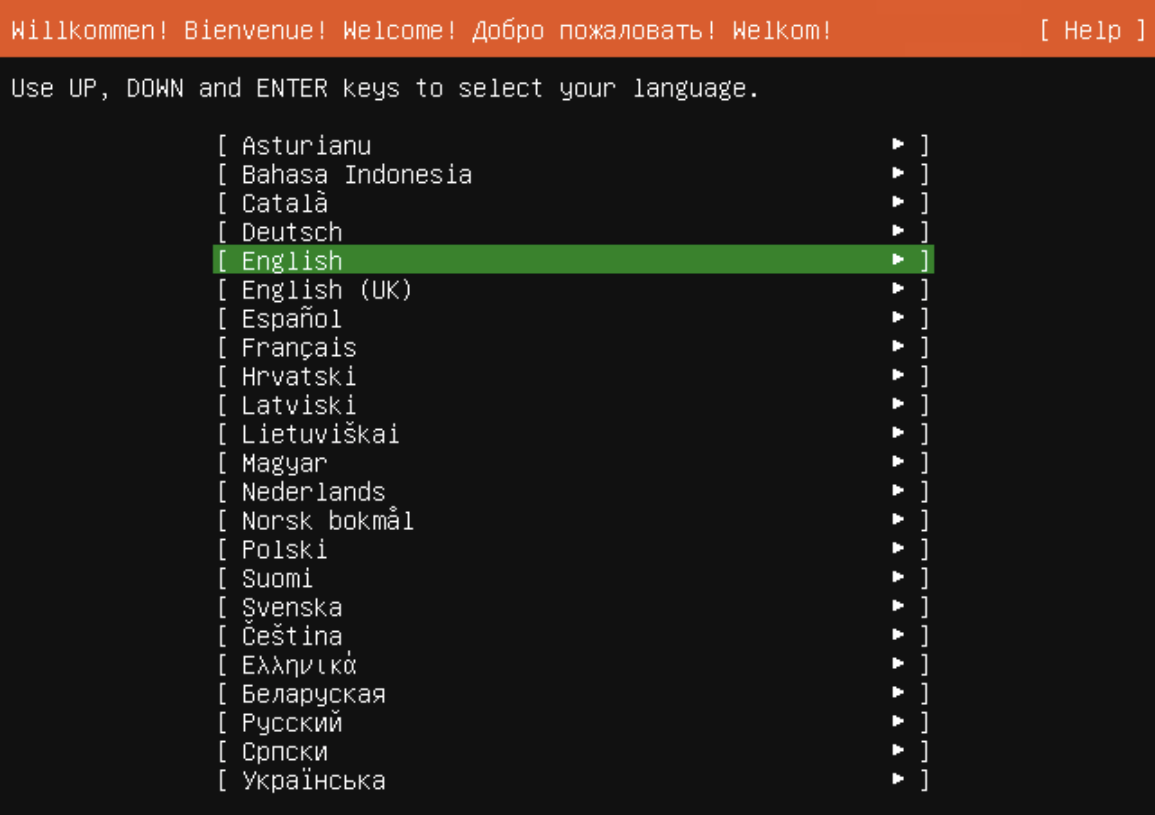
Select Language: Choose English.
-
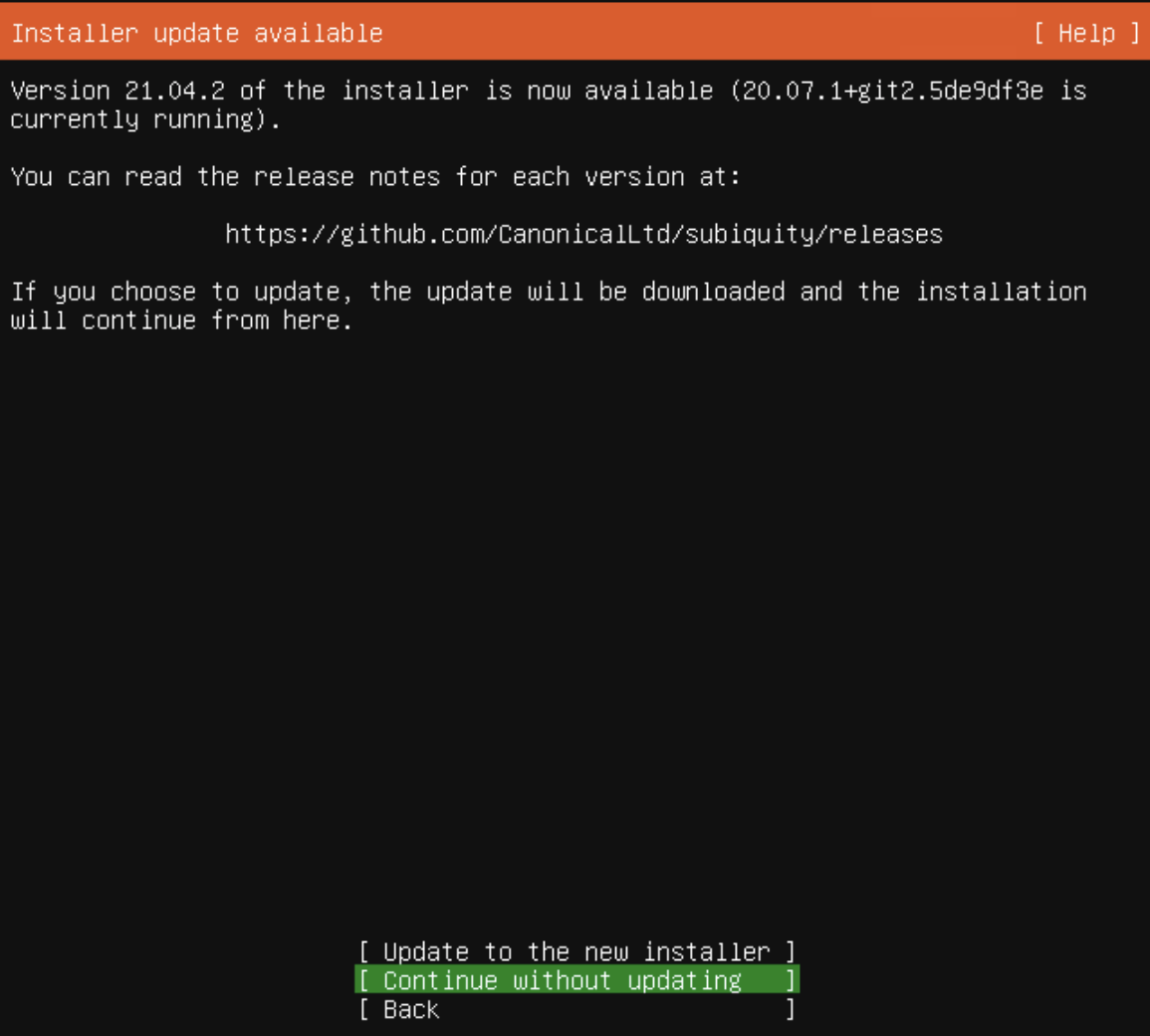
Installer Update: If prompted, choose Continue without updating.
-
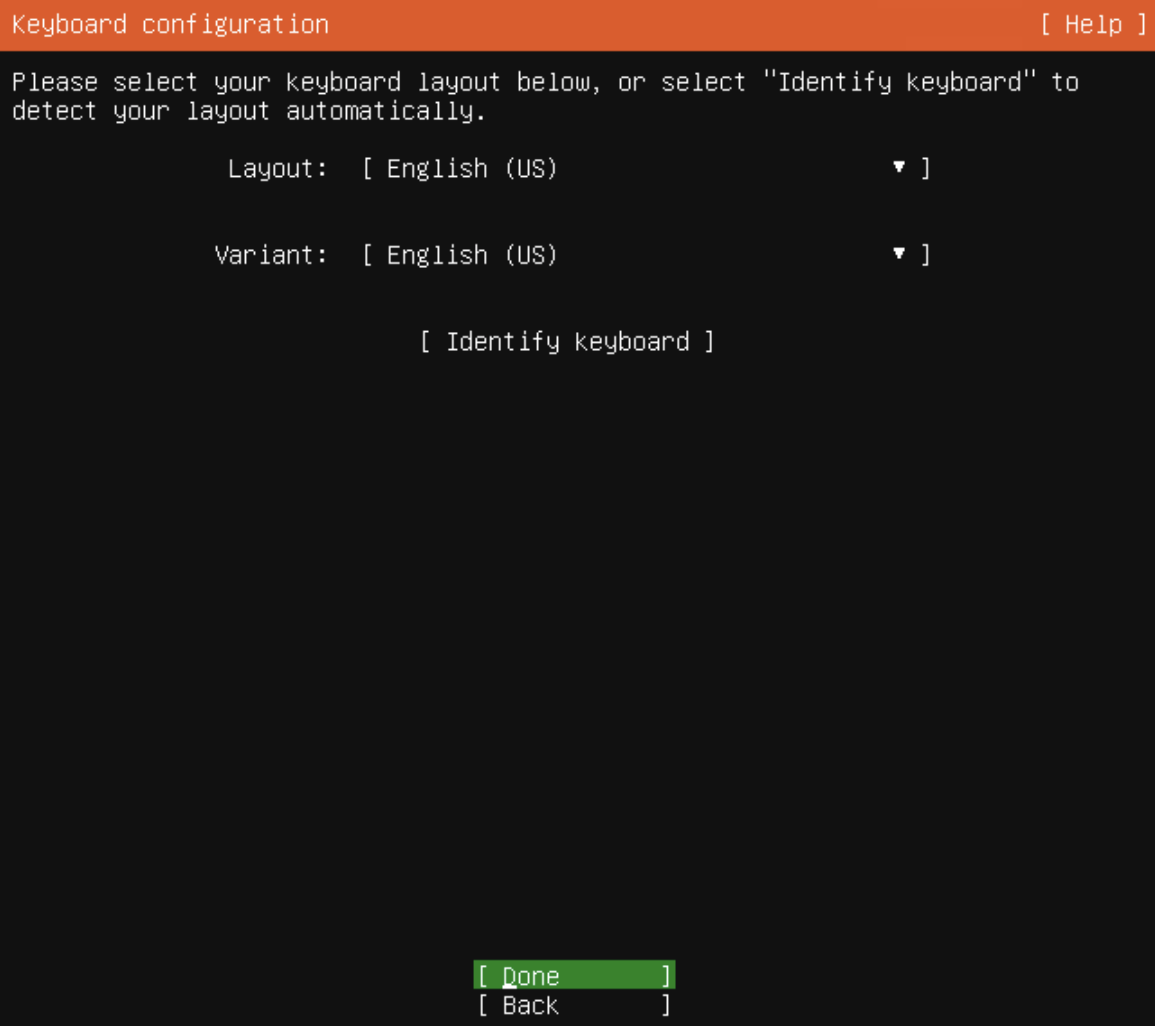
Keyboard Layout: Keep the default layout and select Done.
-
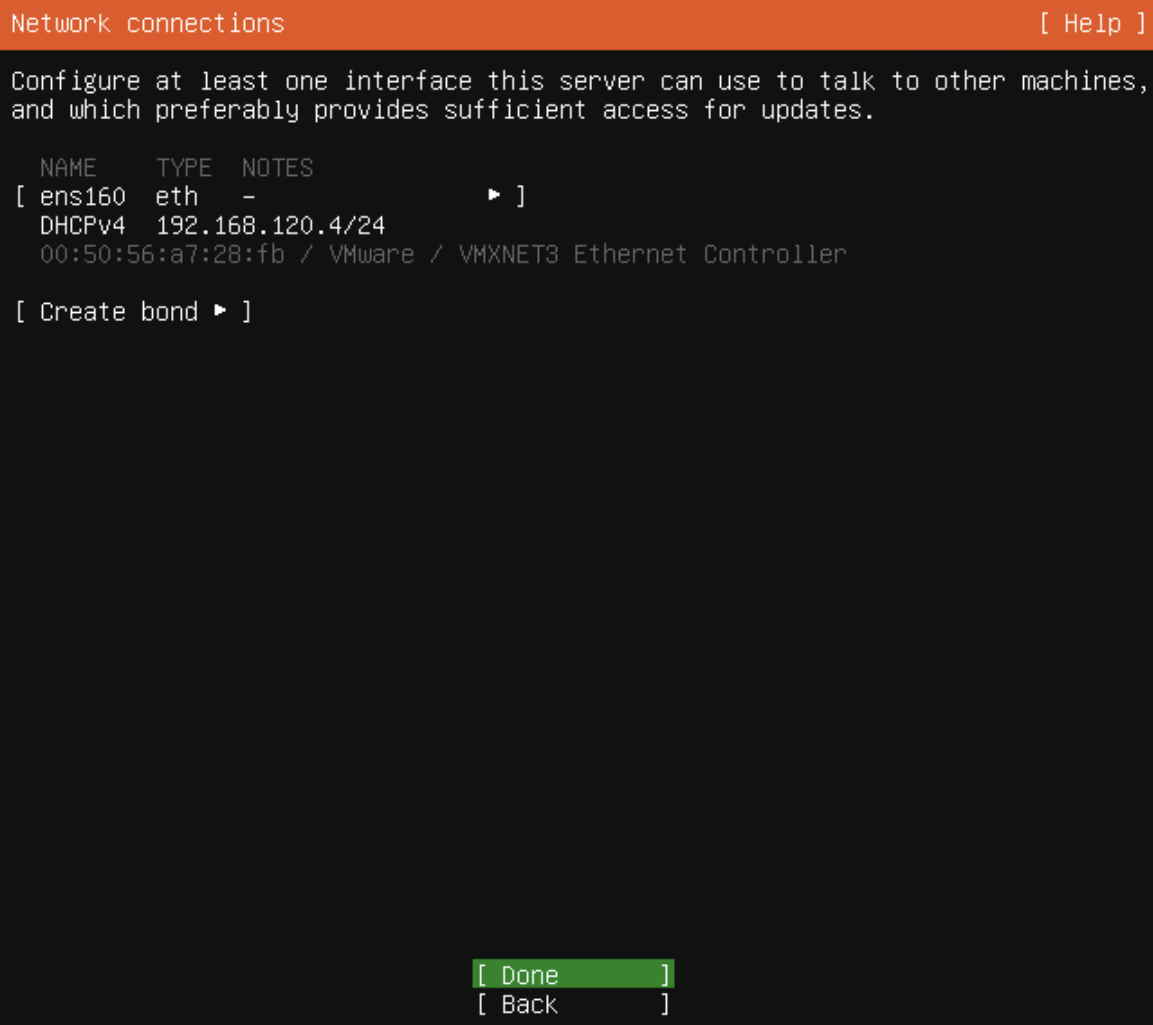
Network Connections: Keep the default network settings (DHCP) and select Done.
-
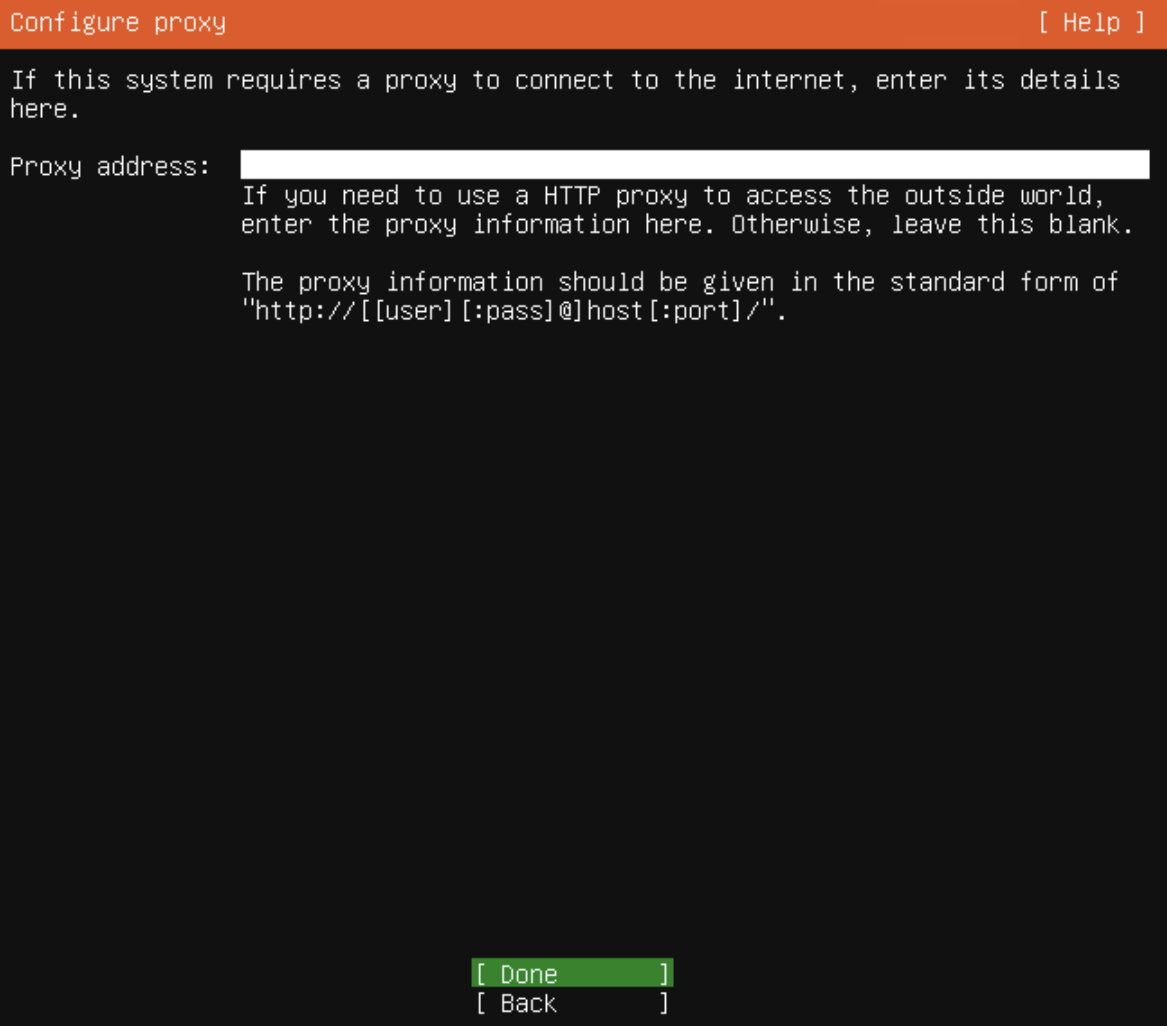
Configure Proxy: If you don’t need a proxy, leave it blank and select Done.
-
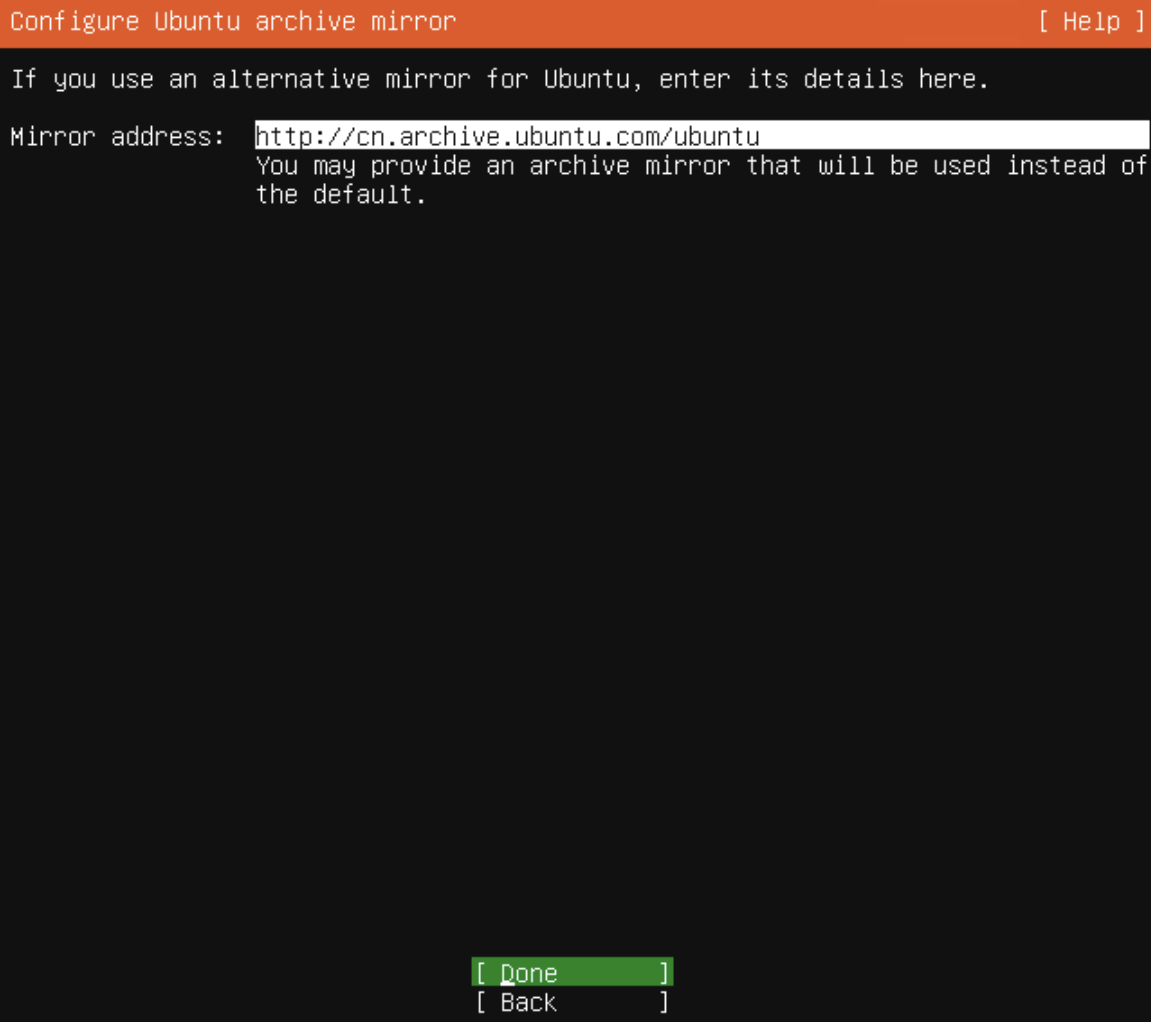
Configure Ubuntu Archive Mirror: Keep the default mirror address and select Done.
-
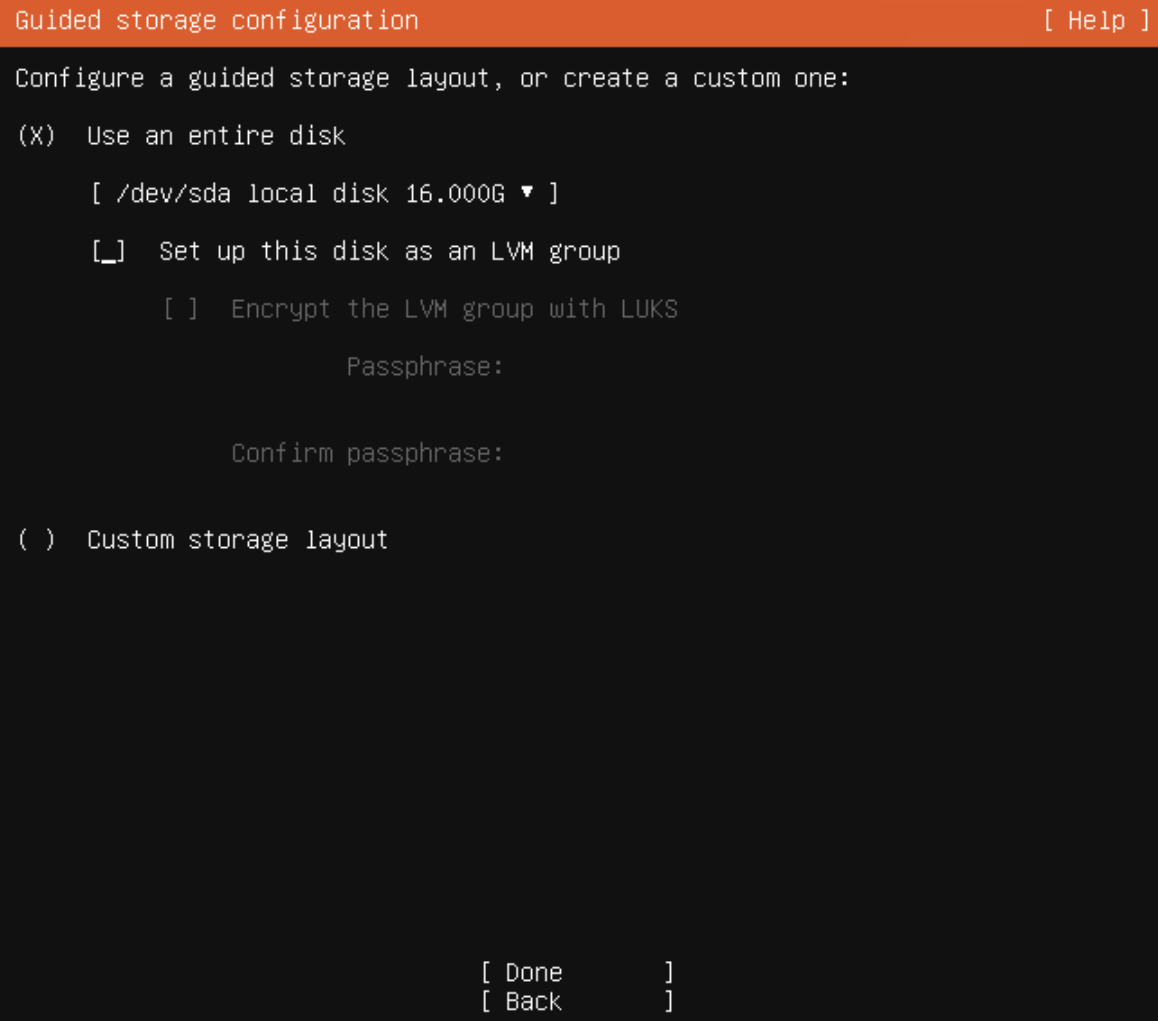
Storage Configuration:
- In Guided storage configuration, uncheck Set up this disk as an LVM group.
- Select Done.
-
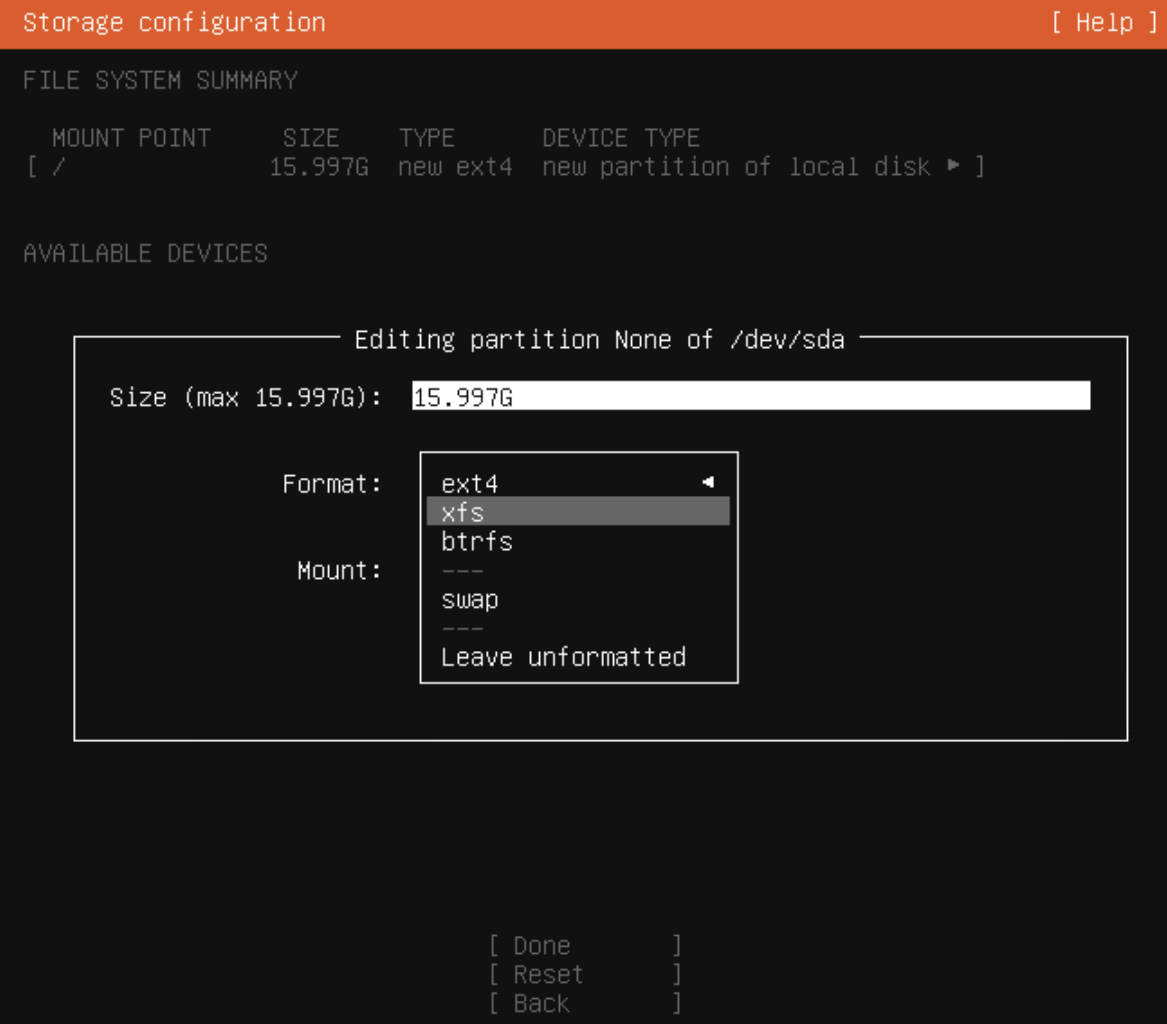
File System Setup:
- You will see a summary of the storage configuration.
- Select the partition (e.g.,
partition 2) and press Enter. - Select Edit.
- Change Format to xfs.
- Select Save.
- Select Done and confirm by choosing Continue.
-
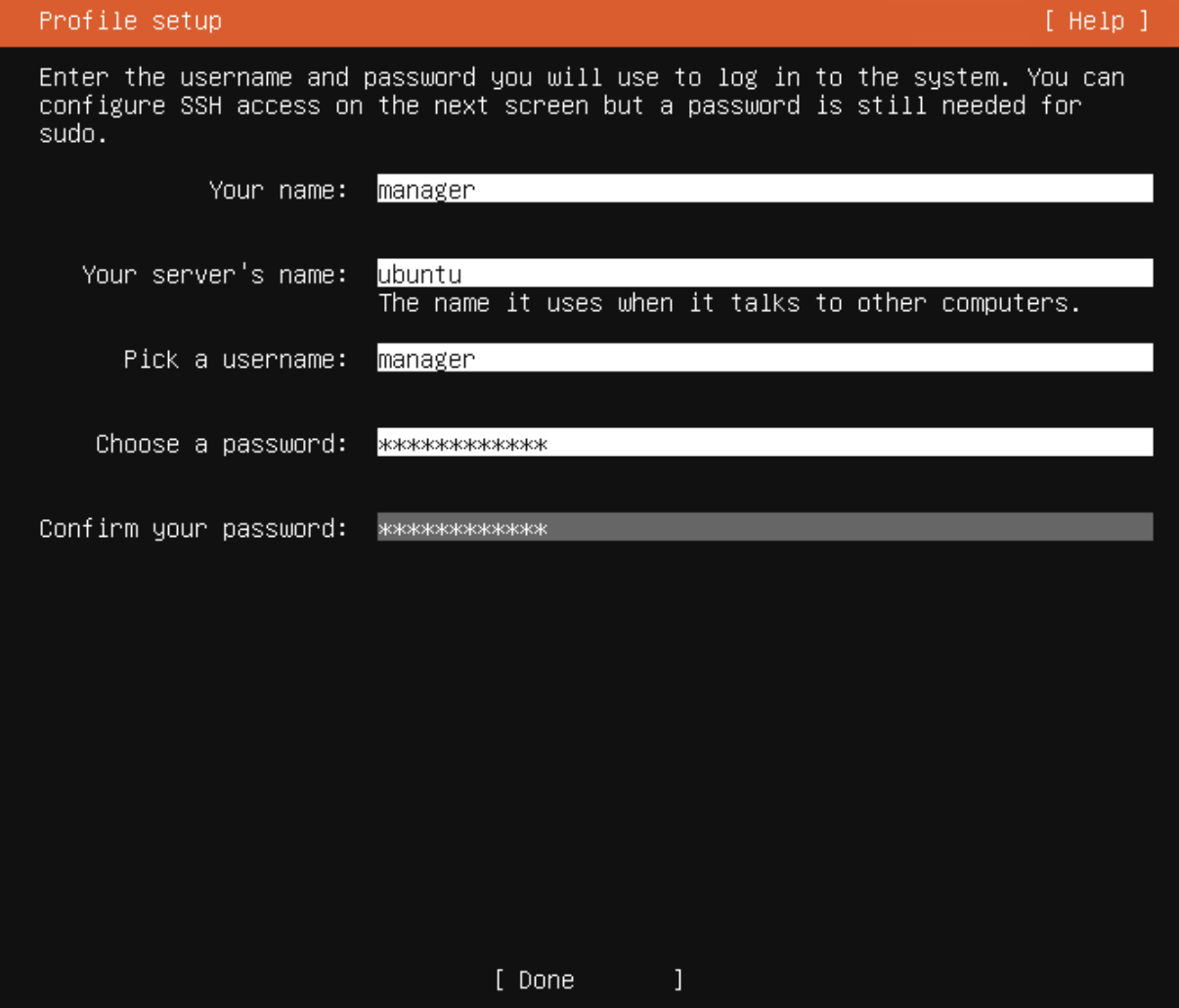
Profile Setup: Enter your server profile information.
Recommended Settings:
- Your name:
manager - Your server’s name:
ubuntu - Pick a username:
manager - Choose a password: (Set a strong password)
- Your name:
-
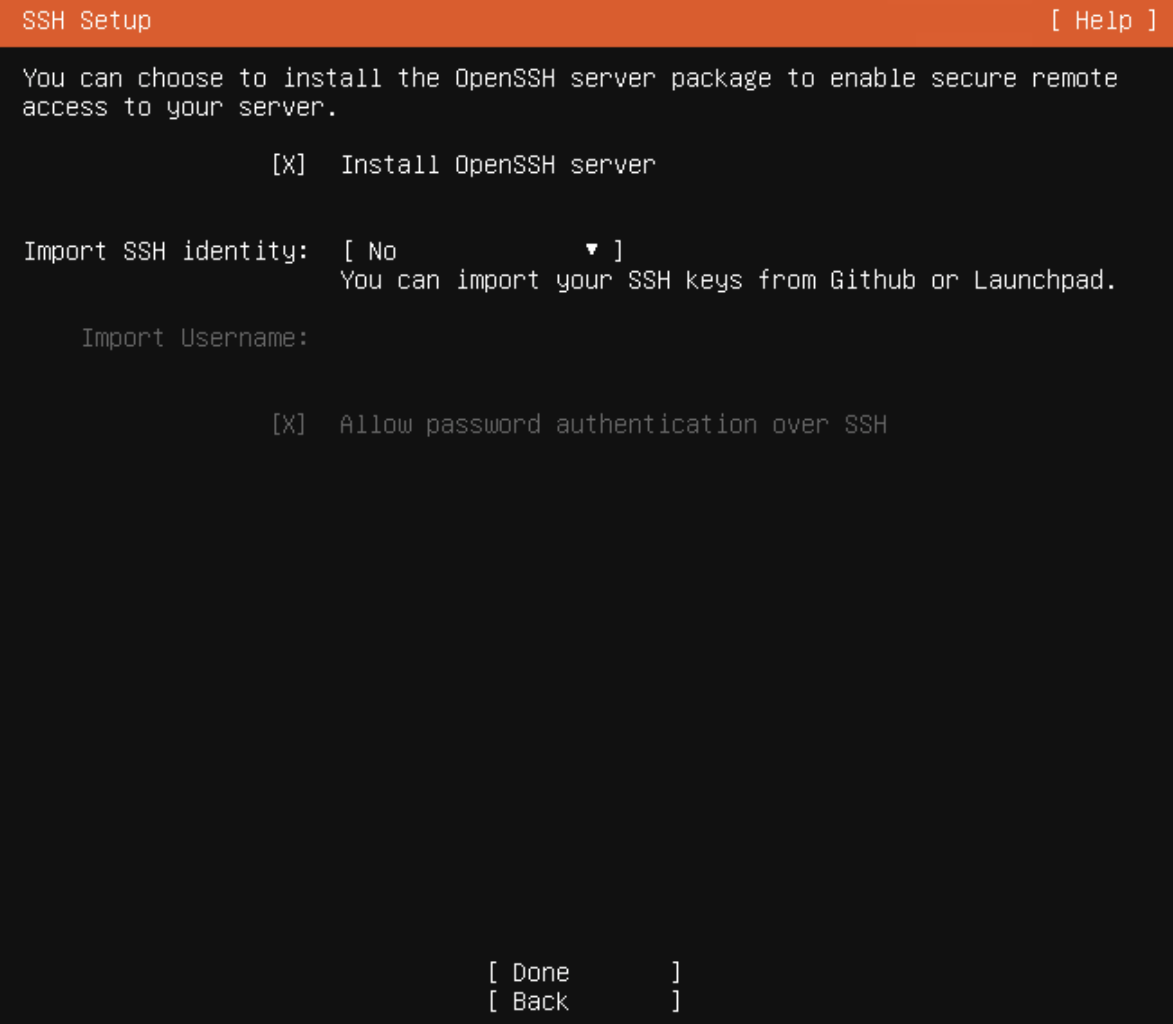
SSH Setup: Check Install OpenSSH server to enable remote access. Select Done.
-
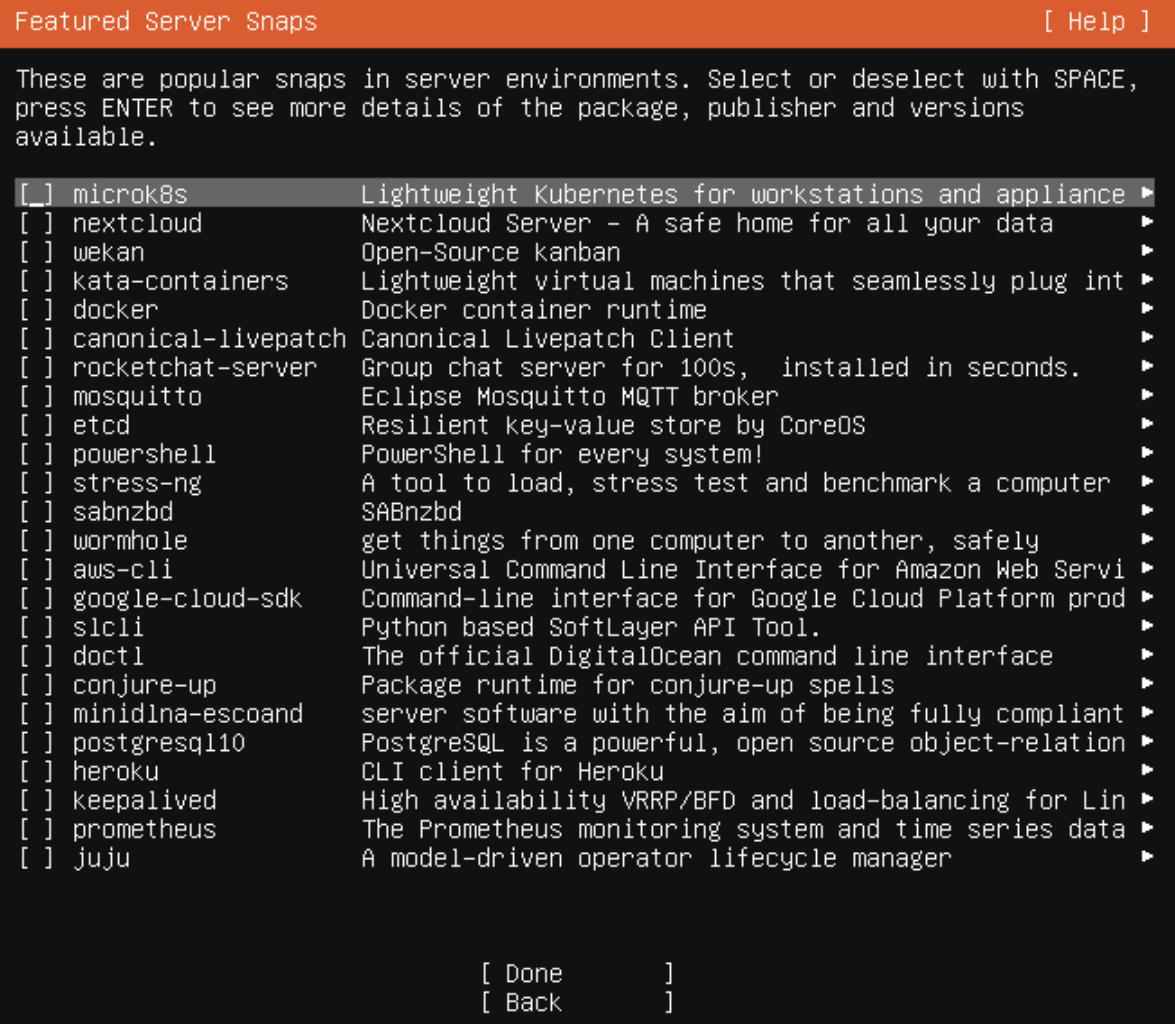
Featured Server Snaps: Do not select any packages. Select Done.
-
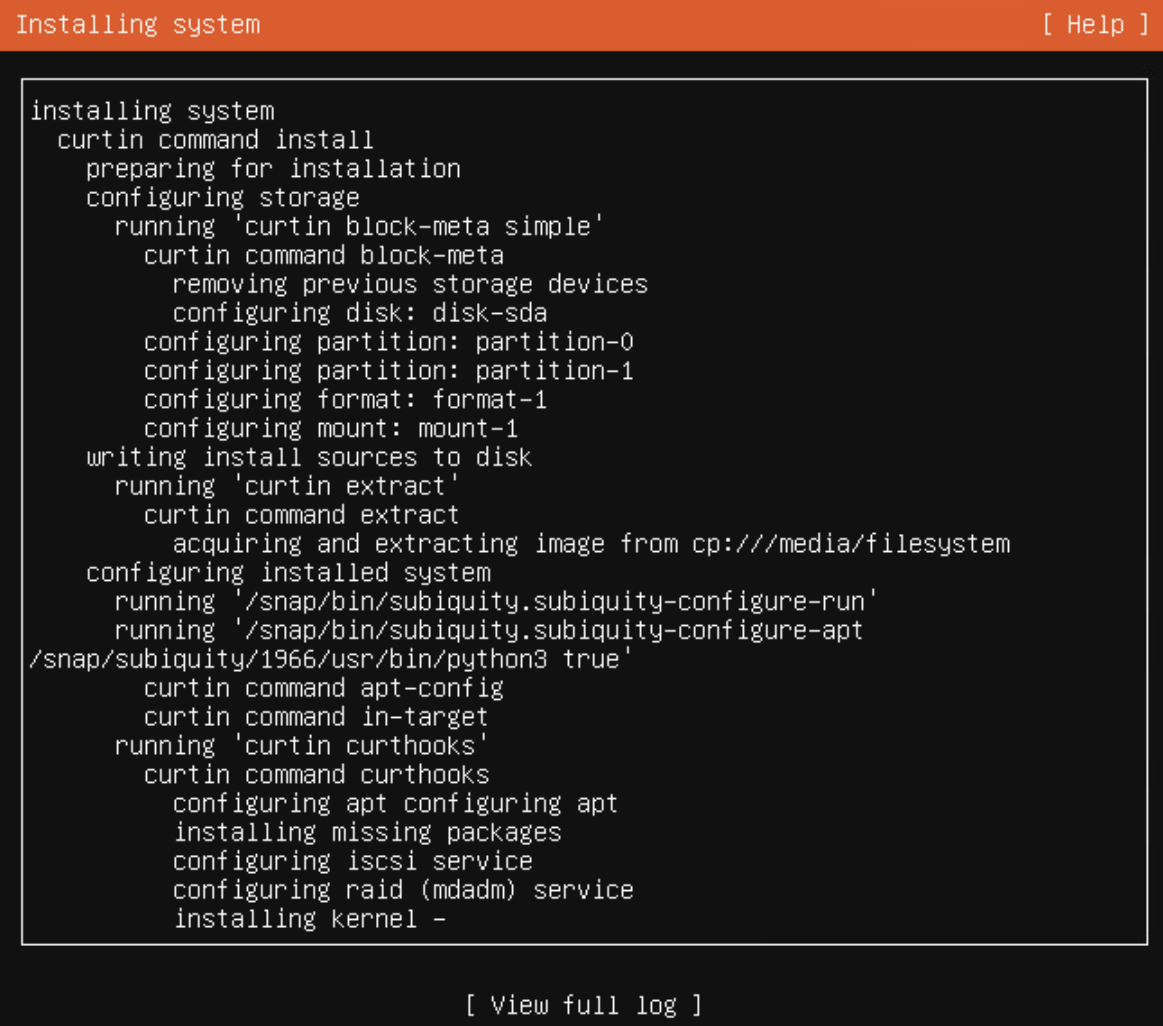
Installation Progress: Wait for the installation to complete.
-
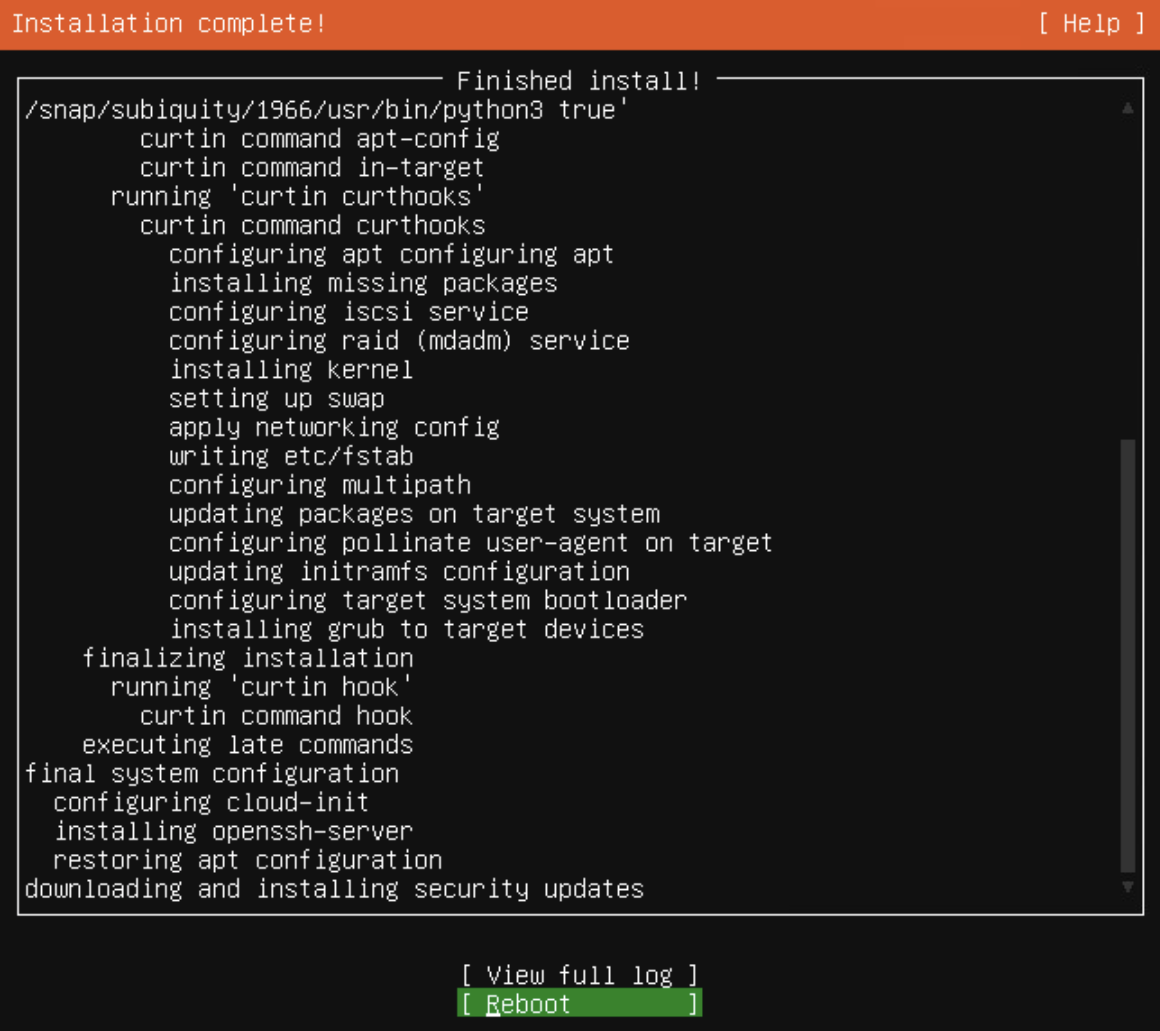
Finish: When the installation is complete, select Reboot Now. Remove the USB drive when prompted.